


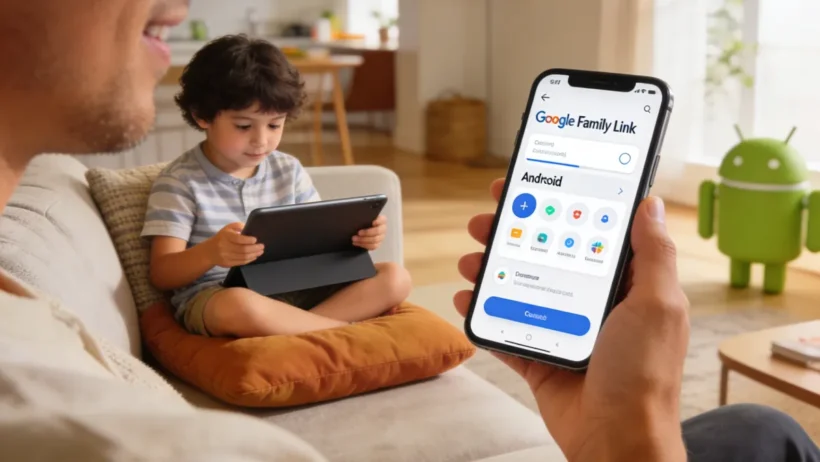
If you have a child using an Android phone or tablet, you have probably wondered how much control you actually have over what they see, download, and do online. The good news is that Google Family Link setup gives parents a real, practical way to manage their child’s digital life without having to hover over their shoulder every minute.
In this guide, we walk you through everything, from downloading the app to activating screen time limits and approving apps. Whether your child is just getting their first device or you are updating your approach for 2026, this is the only resource you need.
What Is Google Family Link and Why Does It Matter?
Google Family Link is a free parental controls app developed by Google. It lets parents supervise a child’s Android device or Chromebook remotely, from their own smartphone. Think of it as a window into your child’s digital world, one that gives you oversight without turning every conversation into an interrogation.
With Family Link, you can set daily screen time limits, approve or block apps before they are downloaded, check location in real time, and even lock the device remotely at bedtime. These are not gimmicks. They are tools that help you set boundaries appropriate for your child’s age and maturity.
According to Common Sense Media, children between 8 and 12 spend an average of five to six hours on screens daily for entertainment alone. Having a structured system like Family Link helps families bring that number down to something healthier, and more importantly, it opens up conversations about responsible device use.
What You Need Before You Start the Google Family Link Setup
Before you install anything, make sure you have these in place:
- A Google account for yourself. This will be your parent or guardian account. If you do not already have one, you can create one for free at accounts.google.com.
- A Google account for your child. Children under 13 in the US need a supervised Google account, which Family Link will help you create during setup. Teens 13 and older can also be supervised if they agree.
- An Android device for your child. Family Link works best on Android 5.0 or higher. Chromebooks are also supported. iPhones are not compatible with Family Link, though Google does offer a companion app for parents who use iPhones to manage their child’s Android device.
- The Family Link app on your device. Parents manage everything through the Family Link app on their own phone, available on both Android and iOS.
One thing worth noting before you begin: if your child is 13 or older, they will need to actively agree to being supervised. Family Link will show them a prompt explaining what you can see and control. This transparency is actually a feature, not a bug. It encourages an honest conversation between you and your child about why these guardrails exist.
Step-by-Step Google Family Link Setup Guide
Ready to get started? Follow these steps carefully and you will have everything running in under 20 minutes.
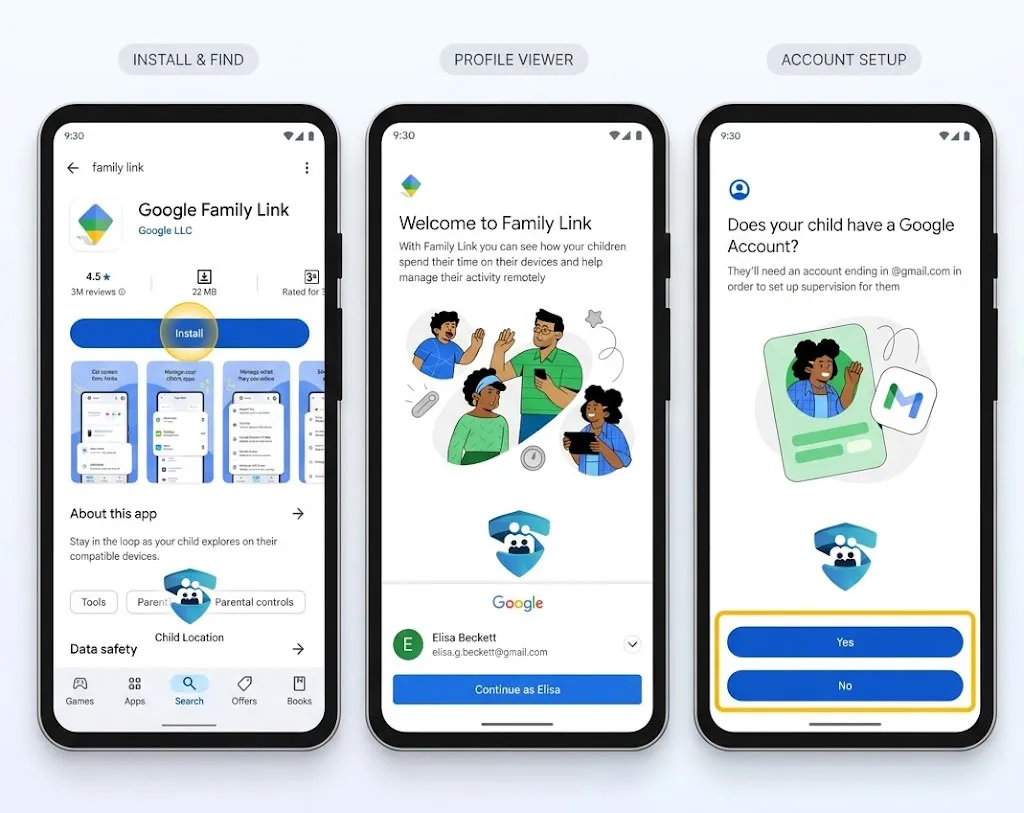
Step 1: Download the Family Link App on Your Device
Search for ‘Google Family Link for Parents’ in the Google Play Store or Apple App Store and install it on your phone. This is the app you will use to manage your child’s account from your own device.
Step 2: Create or Link Your Child’s Google Account
Open the Family Link app and tap ‘Create a Google Account for your child.’ You will be guided through a short process to create a supervised account using your child’s name, date of birth, and a username. You will need to verify your own identity as a parent or guardian, usually by confirming your credit card or existing Google account password.
If your child already has a Google account and is under 13, Family Link will prompt you to link it. Older teens can be invited to join Family Link supervision voluntarily.
Step 3: Set Up the Child’s Device
On your child’s Android device, sign in with their new Google account during the initial device setup, or go to Settings and add their account. The device will recognize it as a supervised account and automatically install the Family Link child companion app.
You will see a prompt on your parent app to finish linking the devices. Follow the on-screen steps until both devices show a green checkmark confirming they are connected.
Step 4: Configure Parental Controls in Family Link
Now the real work begins. Open the Family Link parent app and tap on your child’s profile. You will see several sections you can customize:
- Screen time limits: Set daily time limits for specific apps or the device overall. You can allow more time on weekends than weekdays, which many families find useful.
- App approvals: By default, your child cannot download any app from the Play Store without your approval. You will get a notification on your phone and can approve or decline with one tap.
- Content filters: You can restrict Google Search results, restrict explicit content on Google Play, and set age ratings for apps, games, movies, and books.
- Location sharing: Turn on location sharing to see your child’s device location on a map in real time. This feature updates throughout the day.
- Bedtime mode: Schedule automatic lockdown times so the device goes dark at bedtime, with the option to allow calls and texts through.
| What You Do Right Now Download the Family Link parent app on your phone before your child knows you are setting it up. Prepare your child’s Google account login credentials so the setup process goes smoothly. Write down your own Google account password, as you will need it to verify your identity. Have a short conversation with your child about why you are setting up supervision. |
Tailoring Family Link Settings by Your Child’s Age
Not every child needs the same level of oversight. Here is a rough guide to help you calibrate Family Link settings based on age and maturity.
Ages 6 to 9: Maximum Structure
Younger children benefit from tight guardrails. Set a daily screen time limit of 1 to 2 hours, restrict all app downloads, and enable Google SafeSearch. Turn on location sharing and bedtime lock. Keep content filters at the most restrictive level available.
Ages 10 to 12: Guided Exploration
Kids in this age range are curious and often savvy about finding workarounds. Keep app approvals on, but consider allowing some self-directed app browsing with a 24-hour approval window. Screen time can flex to 2 to 3 hours on school days. Have regular check-ins about what apps they want and why.
Ages 13 and Up: Earned Autonomy
Teens who are supervised through Family Link must consent to it, which already makes this a collaborative relationship. Loosen app restrictions gradually as trust is established. Screen time limits can shift to gentle reminders rather than hard locks. Focus more on conversations than controls at this stage.
| Parent Tip Revisit your Family Link settings every three to six months. Children grow quickly, and what made sense last year may feel too restrictive or not restrictive enough today. The American Academy of Pediatrics recommends consistent limits and ongoing family dialogue, not just technical controls, as the foundation of healthy screen habits. |
Common Google Family Link Problems and How to Fix Them
Even straightforward setups can run into a few snags. Here are the issues parents report most often, along with simple fixes.
My Child’s Device Is Not Showing as Connected
Make sure your child is signed into their supervised Google account on the device, not a personal or school account. Go to Settings, tap Accounts, and confirm the right account is active. Then open the Family Link parent app and tap your child’s name to refresh the connection.
I Am Not Receiving App Approval Notifications
Check that notifications are enabled for the Family Link app on your phone. On Android, go to Settings, then Apps, then Family Link, and confirm notifications are turned on. On iPhone, check Notification Center in your iOS settings. Also make sure your phone is not in Do Not Disturb mode when your child typically uses their device.
Screen Time Limits Are Not Working Properly
If your child can still use their device after the limit is reached, check whether they are accessing apps through a browser instead of standalone apps. Browser time falls under a general category. You can restrict browser access separately in the app management section of Family Link.
My Child Turned 13 and Family Link Is Asking Them to Agree
This is expected behavior. Google requires that teens 13 and older actively consent to supervision. If your child declines, the supervised account will be converted to a standard Google account and parental controls will be removed. This is worth discussing with your child before their birthday arrives.
Google Family Link vs. Other Parental Control Options
Family Link is excellent within the Google ecosystem, but it is worth knowing how it compares to other options, especially if your family uses a mix of devices.
- Google Family Link Free, deeply integrated with Android and Chromebook, limited iOS device management. Best for Android-first families.
- Apple Screen Time Built into iPhones and iPads. Excellent for Apple ecosystems but does not manage Android devices. Parents on iPhone can still use the Family Link parent app to supervise a child’s Android device.
- Bark A third-party monitoring service that works across platforms and focuses on detecting harmful content rather than blanket restrictions. Costs around $14 per month. Good for families who want alerts without micromanaging.
- Qustodio A paid option with cross-platform support, detailed reporting, and location features. More comprehensive than Family Link but comes with a subscription fee.
For most families with Android devices, Google Family Link setup is the natural starting point. It is free, well-supported, and integrates smoothly with the apps and services your child already uses.
What Your Child Can See When You Use Family Link
Transparency is built into Family Link by design. Your child’s device will show a small notification letting them know their account is supervised. They can see which apps are approved and how much screen time they have remaining. They cannot see the location tracking feature from their end, but they do know the account is managed.
This openness is generally a good thing. It reduces the sense that supervision is about surveillance and frames it more as a household rule, like a curfew or a homework policy. The American Academy of Pediatrics consistently emphasizes that communication, not just monitoring, is what shapes healthy digital habits long term.
We recommend telling your child directly that you have set up Family Link, explaining what you can see, and inviting them to ask questions. Children who understand the why behind rules are more likely to follow them and less likely to look for workarounds.
Helpful resources
Best Parental Control Apps for Kids (Tested by Parents)
A practical guide to the best parental control apps that help keep children safe online while maintaining a healthy balance between security and independence.
Frequently Asked Questions
Is Google Family Link setup free?
Yes, Google Family Link is completely free to download and use. There are no subscription fees or premium tiers. The app is available on Android and iOS, and it works with any Android device running version 5.0 or higher.
Can I use Google Family Link to monitor my child’s iPhone?
Not directly. Family Link is designed to supervise Android devices and Chromebooks. If your child uses an iPhone, Apple Screen Time is the built-in option for parental controls. However, parents who use an iPhone can still install the Family Link parent app to manage their child’s Android device from their iOS phone.
What happens to Family Link when my child turns 13?
When your child turns 13 in the United States, Google will notify both you and your child that supervision is becoming optional. Your child must actively agree to continue being supervised. If they decline, their account transitions to a standard Google account. This is a good opportunity to revisit your family’s digital agreements together.
Can my child bypass Google Family Link screen time limits?
Family Link is fairly robust, but no system is foolproof. Children sometimes find workarounds, such as accessing content through a browser or using a second device. The best approach combines technical controls with open conversation. If your child is consistently trying to get around limits, that is worth discussing rather than just tightening restrictions further.
Does Google Family Link setup work on Chromebooks?
Yes. If your child uses a school Chromebook or a family Chromebook at home, you can link it to their supervised Google account and apply many of the same controls, including app approvals and screen time limits. Note that school-managed Chromebooks may have separate policies set by the school district that take precedence.
Final Thoughts: Building Digital Trust with Family Link
Setting up Google Family Link is one of the most straightforward and impactful steps you can take to give your child a safer experience online. It is not about distrust. It is about giving children the structure they need while they are still developing the judgment to navigate a complex digital world.
The setup process takes less than 30 minutes. The conversations it enables can last years. Start with settings that match your child’s current age and maturity, plan to revisit them regularly, and keep the dialogue open so your child knows that the goal is to support them, not spy on them.
If you found this guide helpful, explore our other resources on parental controls for iPhone, safe apps for kids, and how to talk to children about screen time. We are here to make these decisions a little easier for every family.