

If your child has an Android phone or tablet, you already know the mix of feelings that come with it. On one hand, it keeps them connected and gives you peace of mind knowing they can reach you. On the other, the internet is a wide-open space, and not all of it is suitable for young eyes. That tension is real, and you are not alone in feeling it.
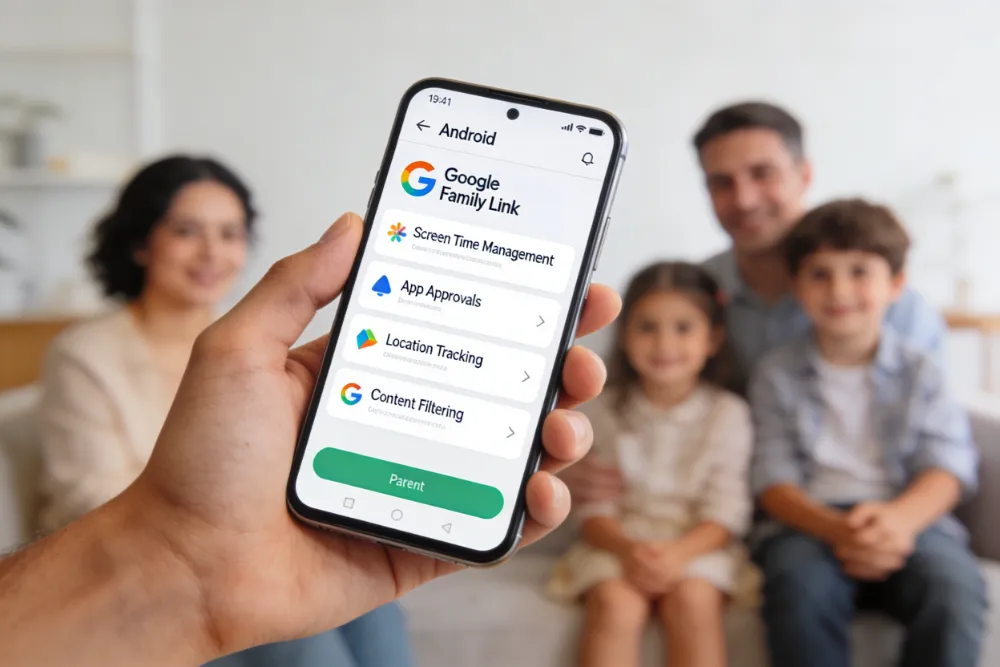
The good news is that Android offers some genuinely useful tools to help you stay in control. With the right setup, you can limit screen time, block inappropriate content, approve apps before they download, and even track your child’s location, all from your own phone. And the best part? Most of these tools are free and built right into the Android system.
In this guide, we walk you through exactly how to set up parental controls on Android, step by step. Whether your child is seven or fourteen, these settings can be adjusted to fit their age, maturity, and your family’s values. No technical experience required.

Why Parental Controls on Android Actually Matter
It might be tempting to trust your child completely and skip the controls altogether. We understand that instinct. But parental controls are not about distrust. They are about creating a safe digital environment while your child is still learning the rules of the road.
Think of it this way: you would not hand a new driver the keys and disappear. You would ride along, offer guidance, and gradually step back as their confidence grew. Digital parenting works the same way.
According to Common Sense Media, children between the ages of 8 and 12 spend an average of nearly five hours per day on screens, and that number climbs even higher for teenagers. Without some structure in place, it is very easy for screen time to expand and for kids to stumble onto content that is not appropriate for their age.
Android’s built-in parental control tools, especially Google Family Link, give you a practical way to set healthy boundaries without constant battles over the phone.
What You Need Before You Start
Before diving into the setup process, let’s make sure you have everything in place. You will need:
- An Android device for your child (running Android 7.0 or later works best)
- Your own Android or iOS device
- A Google account for your child. If they do not have one yet, you can create a supervised Google account during the setup process
- The Google Family Link app installed on your device (it is free on the Play Store and App Store)
If your child already has a Google account and is under 13, Family Link may already be partially active. If they are 13 or older, you can still use Family Link, but your child will have the option to unenroll, so open conversations about why these tools are in place become especially important at that stage.
How to Set Up Parental Controls on Android: Step-by-Step
Step 1: Download and Open Google Family Link
Start on your own phone. Head to the Google Play Store or Apple App Store and search for “Google Family Link.” Download and install it, then open the app and sign in with your own Google account.
You will be guided through a short setup wizard. Select “Parent” when asked for your role. The app will then walk you through connecting your child’s device.
Step 2: Create or Link Your Child’s Google Account
If your child does not have a Google account, Family Link will guide you through creating one. You will need to enter their name, birthdate, and create an email address for them. Because the account is for a child, Google will automatically apply certain protections.
If they already have an account, select “This child has a Google Account” and follow the prompts to link it. Your child will need to approve the connection on their device, so make sure you do this together.
Step 3: Add Your Child’s Device
Once the accounts are linked, Family Link will ask you to add your child’s Android device. On their phone or tablet, open the Family Link app (or it may prompt them automatically) and sign in with their Google account. Follow the on-screen steps to connect the two devices.
You may see a setup code that you enter on your child’s device to confirm the connection. After a few moments, both devices will be synced and you will have access to the parent dashboard.
Step 4: Set Daily Screen Time Limits
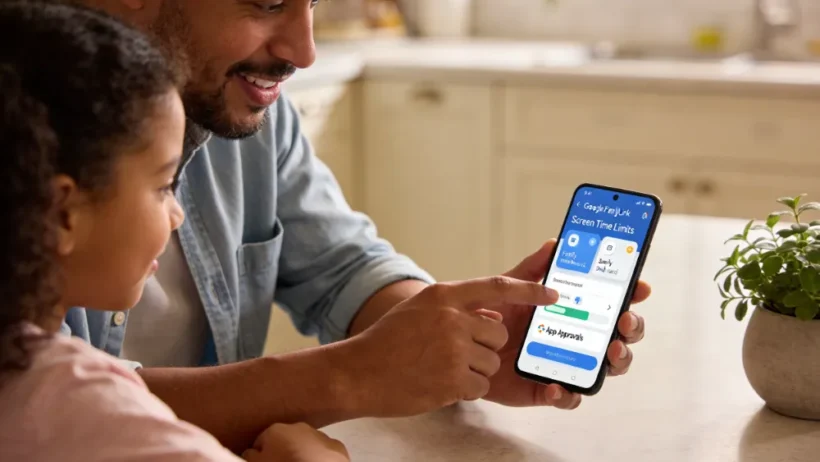
This is often the feature parents reach for first, and for good reason. In the Family Link app on your phone, tap your child’s name, then select “Screen time.” From here you can:
- Set a daily time limit for how long they can use the device
- Schedule “bedtime” hours when the device locks automatically
- View a detailed report of how they spent their time each day and week
For example, you might allow two hours of screen time on school days and three on weekends, with the device locking at 9 PM every evening. These limits can be adjusted any time, so you can be flexible during holidays or special occasions.
Step 5: Manage and Approve Apps
One of the most powerful features of Family Link is app control. When your child tries to download a new app from the Play Store, you will receive a notification on your phone asking you to approve or deny it. This gives you a chance to check the app’s age rating, read reviews, and decide if it is suitable.
To manage existing apps, go to your child’s profile in Family Link and tap “Controls,” then “App controls.” You can see all installed apps and choose to allow or block each one individually. This is especially useful for blocking social media apps or games with in-app purchases.
Step 6: Filter Content on Google Play and Chrome
Head to “Controls” in your child’s Family Link profile, then tap “Content restrictions.” Here you can:
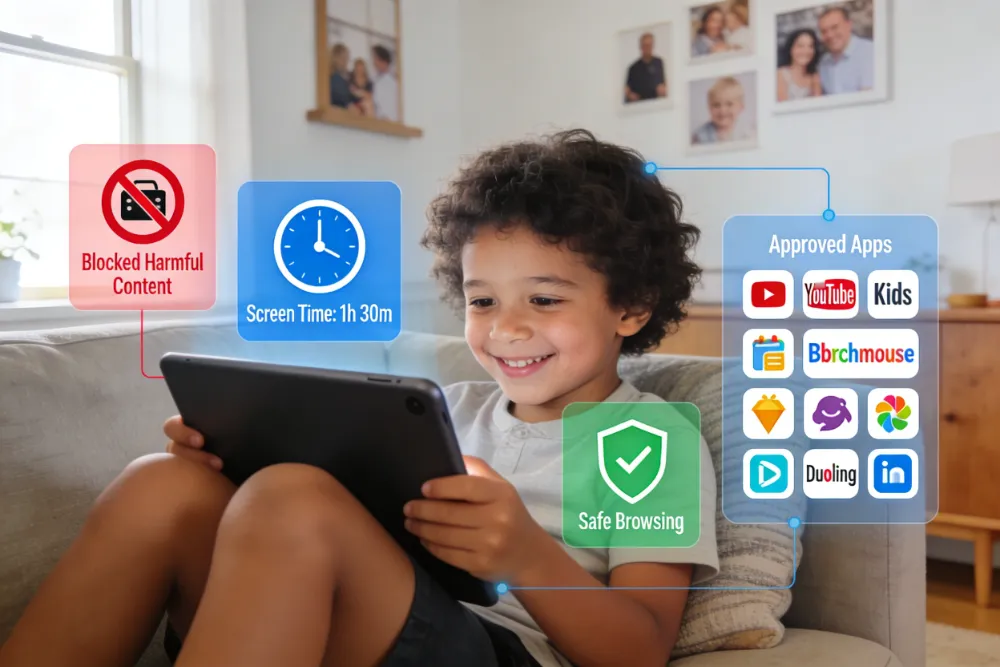
- Set a maximum app age rating on the Play Store (for example, “Ages 9 and up” or “Teen”)
- Block or allow explicit music, movies, and TV shows
- Manage SafeSearch settings for Google Search
- Turn on content filters for Chrome to block mature websites
Keep in mind that content filters are helpful but not perfect. Some websites may still slip through, and your child will eventually encounter things online that surprise both of you. That is why combining these filters with open conversations about internet safety is so important.
Helpful resources
How to Set Up Parental Controls on iPhone (Step-by-Step)
Learn how to set up Parental Controls on iPhone using Apple’s built-in Screen Time features. This step-by-step guide helps parents manage apps, content, privacy, and screen time to keep kids safer online.
Step 7: Enable Location Sharing
If you want to know where your child is, Family Link includes a built-in location feature. From your child’s profile, tap “Location.” Toggle it on and your child’s device will share its location with you in real time.
This feature works best when location services are enabled on your child’s phone and when their device has an active internet connection. It is worth having a conversation with your child about why you have turned this on. Being transparent about location tracking helps build trust rather than resentment.
Step 8: Review and Adjust Regularly
Setting up parental controls is not a one-time task. As your child grows, their needs and maturity level will change. We recommend revisiting your Family Link settings every few months. Ask yourself whether the current limits still make sense, whether there are apps your child has outgrown restrictions for, and whether your child has demonstrated enough responsibility to earn a bit more freedom.
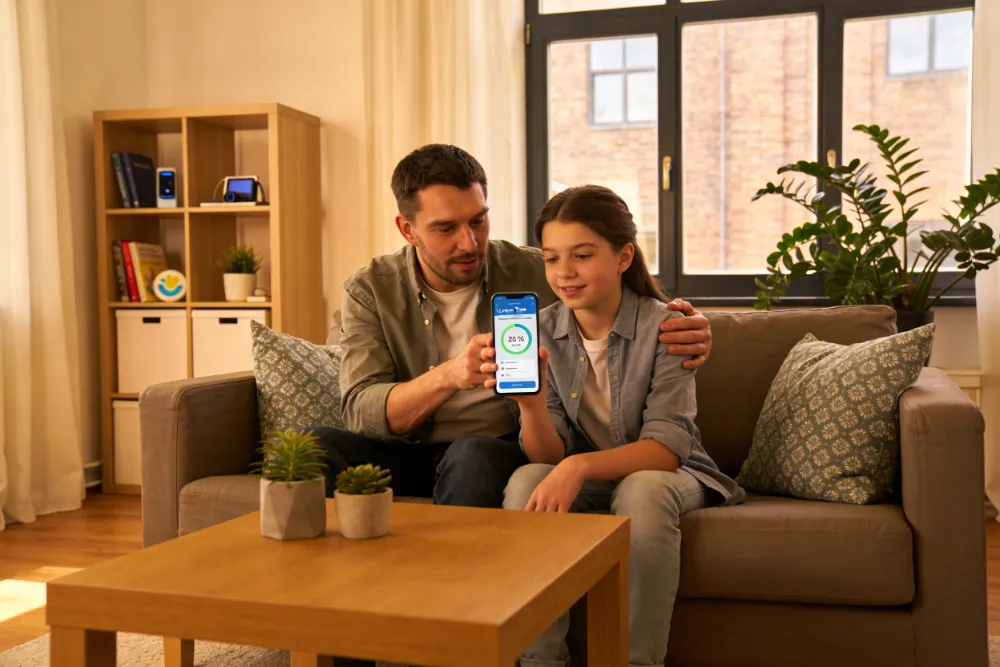
This regular check-in also gives you a natural opportunity to talk with your child about what they have been doing online, which apps they enjoy, and whether they have encountered anything that made them uncomfortable.
| Quick Tip: Make It a Conversation, Not a Command |
| When you set up parental controls with your child rather than in secret, they are far more likely to respect the boundaries. Explain why you are putting certain limits in place. Kids are more cooperative when they understand the reasoning behind a rule. |
Additional Built-In Android Parental Controls Worth Knowing
Digital Wellbeing Settings
Beyond Family Link, every Android phone running Android 9 or later has a built-in tool called Digital Wellbeing. You can find it in Settings. It allows you to set app timers, enable Focus Mode, and wind down screen activity before bed. These tools are designed for adults, but on a child’s device they add an extra layer of structure even without Family Link.
To access it, go to Settings on your child’s phone and scroll down to “Digital Wellbeing and Parental Controls.” You will find usage stats, app timers, and a Bedtime mode that gradually shifts the screen to grayscale in the evening, which is a clever way to naturally reduce usage.
Guest Mode and Restricted Profiles
If your child shares your tablet rather than having their own device, you can use Android’s built-in user accounts feature. Go to Settings, then “System,” then “Multiple Users.” Adding a restricted profile lets you control exactly which apps and features are accessible to that user. This is a practical option for households where one device is shared between family members.
Safe Browsing on Chrome
If your child uses Chrome to browse the web, you can add an extra layer of protection by enabling SafeSearch and managing site permissions. In Chrome, tap the three-dot menu, go to “Settings,” then “Privacy and Security.” Under “Safe Browsing,” select “Enhanced protection” for the strongest level of phishing and malware detection.
You can also go into “Site settings” to control whether websites can access the camera, microphone, or location. Restricting these permissions for younger children is a smart default.
Helpful resources
Best Parental Control Apps for Kids (Tested by Parents)
Discover the best parental control apps for kids tested by real families and parents. Compare top tools like Qustodio, Bark, and Norton Family to find the right balance between online safety and screen-time freedom for your children.
Common Mistakes Parents Make With Android Parental Controls
Even with the best intentions, it is easy to set up these controls and then not get the full benefit from them. Here are a few pitfalls we see often and how to avoid them.
- Setting it and forgetting it. Parental controls need maintenance. Apps change, your child gets older, and new platforms emerge. Schedule a regular review every few months.
- Being too restrictive without explanation. If your child feels overly monitored without understanding why, they are more likely to look for workarounds. Balance firm boundaries with honest conversations.
- Forgetting about in-app content. Approving an app does not mean everything inside it is safe. YouTube Kids, for example, occasionally surfaces content that slips past its filters. Checking in on what your child actually watches matters.
- Not setting a screen-free PIN. If you set up screen time limits without a lock code, an older child can easily go into settings and turn them off. In Family Link, make sure your parent PIN is something your child does not know.
- Ignoring Wi-Fi-only apps. Some apps and games only need Wi-Fi to function. Even without mobile data, a child with Wi-Fi access can still reach a lot of content. Your router settings may be worth looking into as an additional filter.
Talking to Your Child About Parental Controls
Technology is only part of the solution. The other part is conversation. When children know what the rules are, why they exist, and that you are open to adjusting them over time, they tend to respond much better than when controls feel like surveillance.
Here are a few ways to frame that conversation depending on your child’s age.
- For ages 5 to 8: Keep it simple. “These settings help make sure you only see things that are right for kids your age. It works like a seatbelt, it is there to keep you safe.”
- For ages 9 to 12: Give a bit more detail. Explain that some content online is made for adults, and that the controls help filter that out while they are still learning what is trustworthy online.
- For teenagers: Have an honest two-way conversation. Acknowledge that they are growing up and earning more independence. Explain that the controls are not permanent and that as they demonstrate responsibility, you will adjust the settings.
If your child pushes back, listen to their concerns. Sometimes there is a reasonable middle ground. The goal is not perfect compliance but a healthy, ongoing dialogue about digital life.
When Google Family Link Is Not Enough
For most families, Google Family Link covers the basics very well. But some parents want more detailed monitoring or controls that go beyond what Google offers. In those cases, third-party apps like Bark, Qustodio, or Circle can be worth exploring.
Bark, for example, monitors your child’s messages and social media for signs of bullying, self-harm, or inappropriate contact, without showing you every message. This approach gives children a degree of privacy while still flagging serious concerns. Qustodio offers detailed activity reports and lets you filter content at the network level. Circle works with your home router to apply controls across all devices on your Wi-Fi.
These tools come with subscription costs and vary in how they handle privacy. We always recommend reading the privacy policy of any monitoring app before installing it on your child’s device.
Final Thoughts: You Do Not Have to Get This Perfect

Parenting in the digital age is genuinely hard, and nobody gets it exactly right. The fact that you are here, reading this guide and looking for ways to keep your child safe online, already puts you ahead of the curve.
Setting up parental controls on Android is one of the most practical things you can do right now. It does not replace good communication or good judgment. But it gives you a framework to work within, a way to reduce the chances of your child stumbling onto something harmful while they are still figuring out how to navigate the internet safely.
Start with Google Family Link if you have not already. Get the screen time limits in place, set up app approvals, turn on the content filters. Then revisit those settings in a few months and adjust as your child grows. It is not a one-size-fits-all solution, and it is not forever. It is just a really good place to start.
We hope this guide made the process feel manageable. If you have questions or need help with a specific setting, feel free to reach out. That is what we are here for.
Frequently Asked Questions
How do I put parental controls on an Android phone?
The easiest way is by using Google Family Link. Install the app on your phone, connect your child’s Google account, and you can manage screen time, app approvals, content filters, and location settings remotely.
Is Google Family Link free to use?
Yes. Google Family Link is completely free and works on most Android devices running Android 7.0 or later. It also works with iPhones for parents who want to manage an Android child device.
Can I limit screen time on my child’s Android device?
Yes. Family Link lets you set daily screen time limits, create bedtime schedules, and even lock the device remotely when needed. You can customize limits for weekdays and weekends separately.
Can parental controls block inappropriate websites on Android?
Yes. Android parental controls can filter mature websites through Chrome and Google SafeSearch. While filters help reduce exposure to inappropriate content, they are not perfect, so regular conversations about online safety are still important.
Can my child remove parental controls on Android?
Children under 13 generally cannot remove Family Link without parental permission. Older teens may have the option to disable supervision, but parents will receive a notification if they do. Keeping open communication is the best long-term approach.
What is the best parental control app for Android?
For most families, Google Family Link is the best free option because it is built directly into Android. Parents who want more advanced monitoring features may also consider apps like Bark or Qustodio.
Can I track my child’s location with Android parental controls?
Yes. Family Link includes real-time location sharing, allowing you to see your child’s device location as long as location services and internet access are enabled on their phone.
Are Android parental controls enough to keep kids safe online?
Parental controls are a strong starting point, but they work best when combined with healthy digital habits and regular conversations about internet safety. Technology can help set boundaries, but communication and trust are just as important.